
Secure Your AWS Console Login With Root IAM and SSO
· 29 min read

Managing your tools and services in Amazon Web Services (AWS) starts with a simple step: the aws console login.
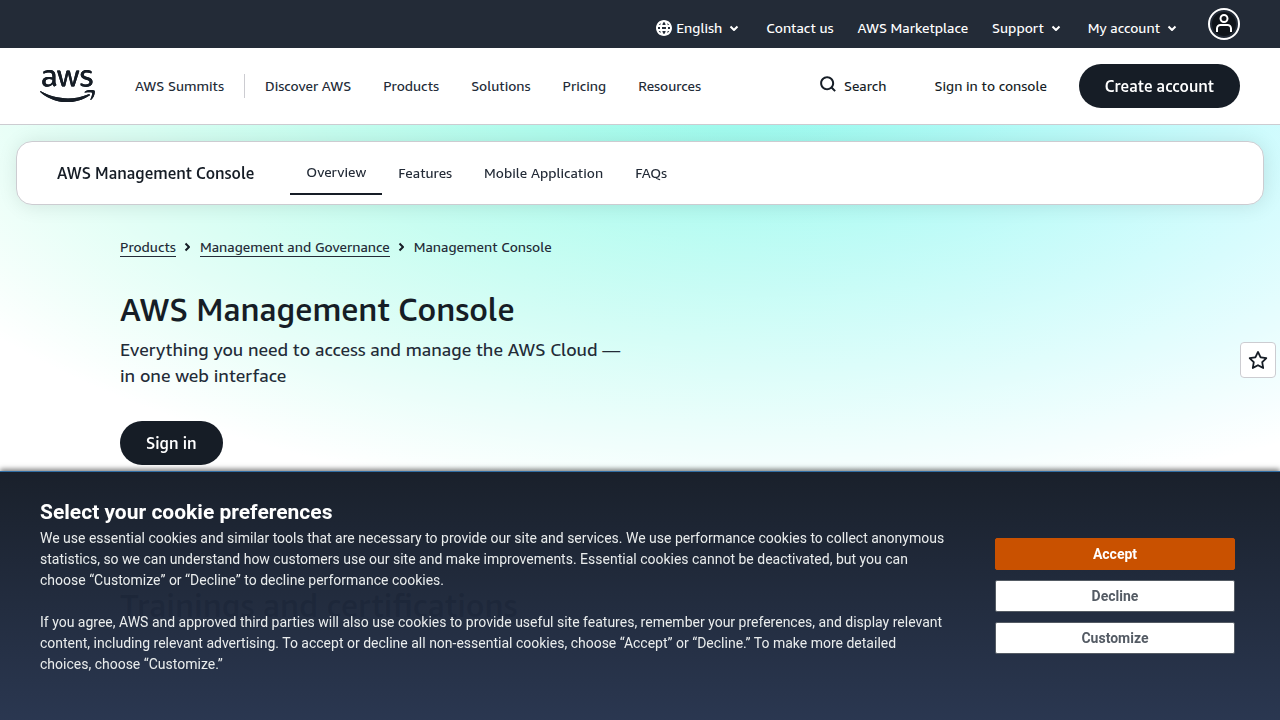
Think of the aws console as your main control center. It’s where you go to set up new services, change settings, and keep an eye on everything happening in your cloud account.

But logging in isn’t always the same for everyone. Actually, there are three main ways people get into the AWS console, and knowing the differences is super important for keeping your cloud environment safe and running smoothly in 2026.
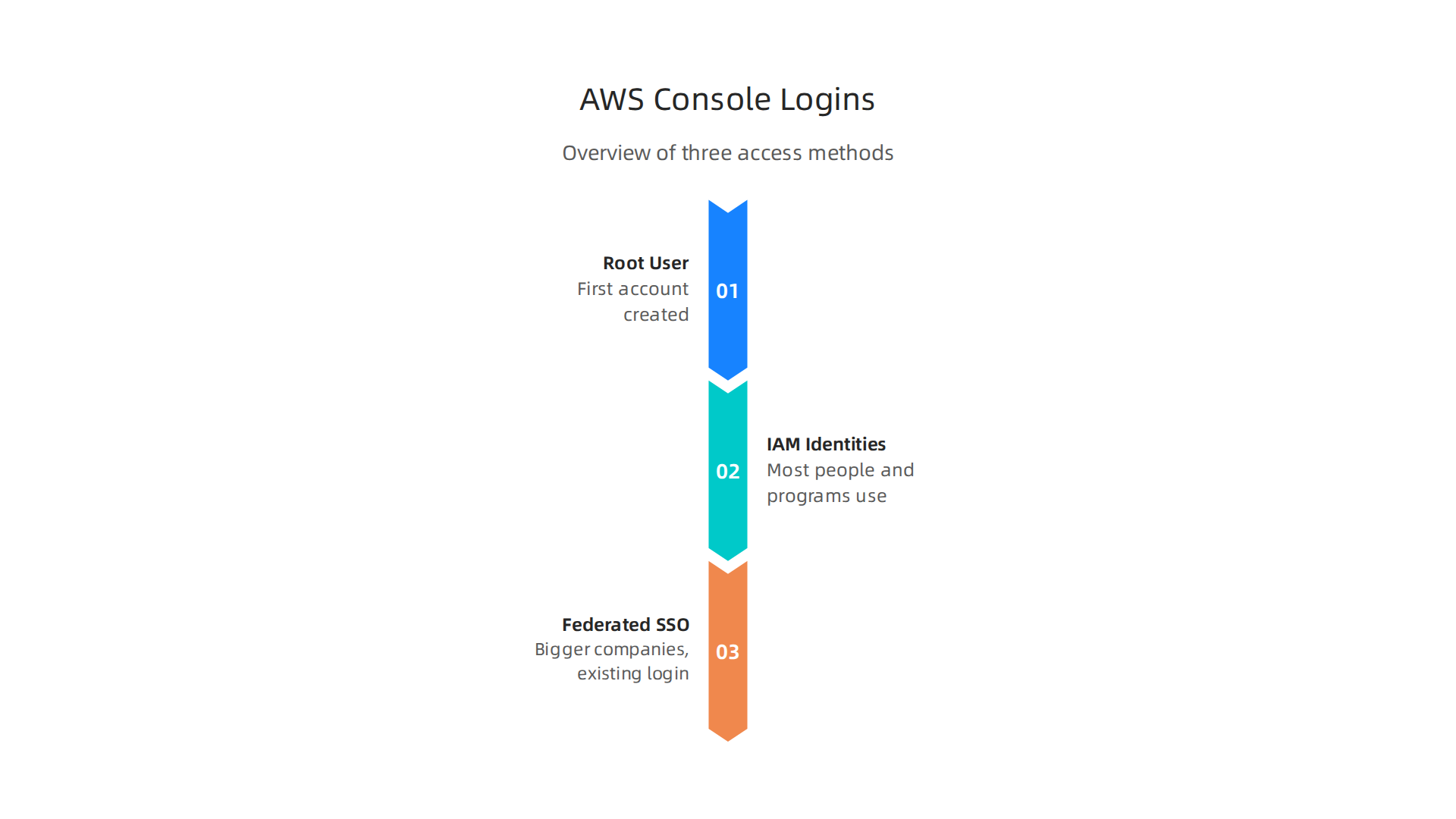
Three Main Ways to Log In to AWS
There are different types of users who need to log in to AWS, and each has a best practice for how they should do it.
- The Root User
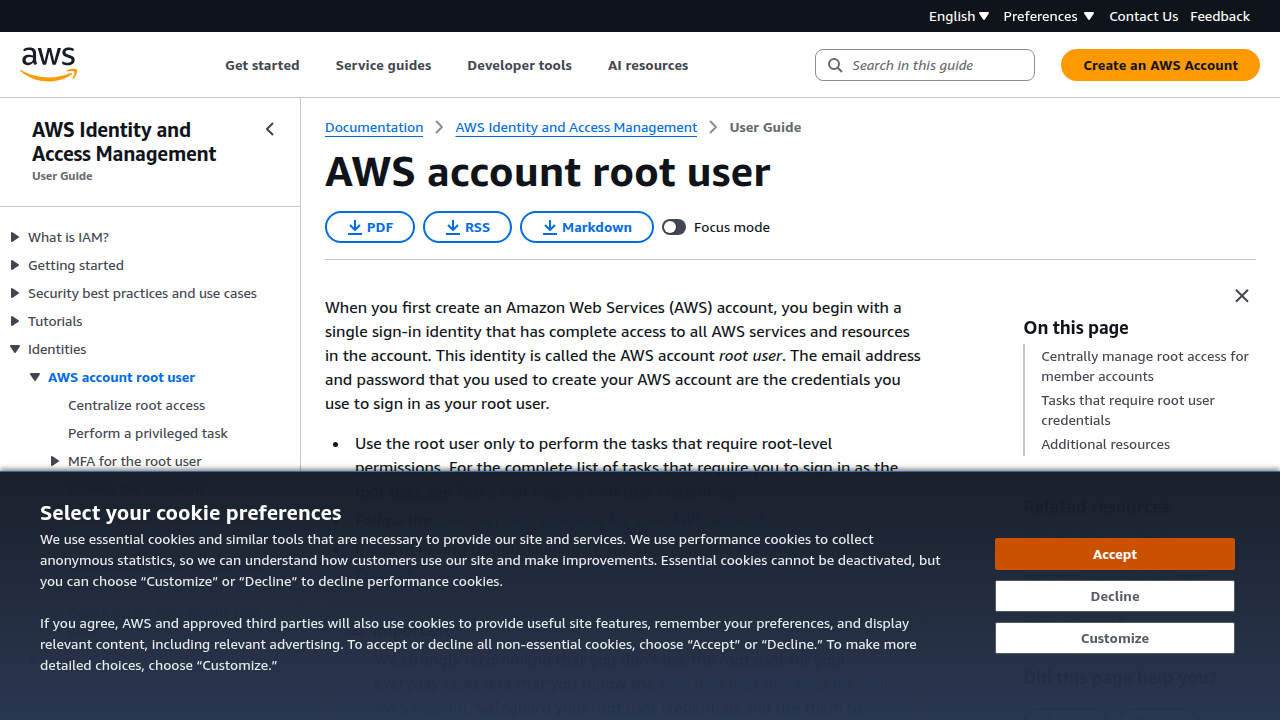
First, there’s theroot user. This is the very first account created when you set up an AWS account. It has all the power and can do anything. Because it’s so strong, AWS recommends you use it only for very few tasks, like changing your account settings, and then lock it away safely, as outlined in the AWS account root user documentation.
-
IAM Identities (Users and Roles)
Most people and programs use what are called IAM identities, like IAM users or roles, for their daily work. IAM stands for Identity and Access Management, and it helps you give just the right amount of access to each person or service without giving them too much power. This is key for good security. You can learn more about signing in as an IAM user by checking the Sign in to the AWS Management Console guide. For a visual explanation of these differences, you might find this Root User vs. IAM User video helpful. -
Federated SSO
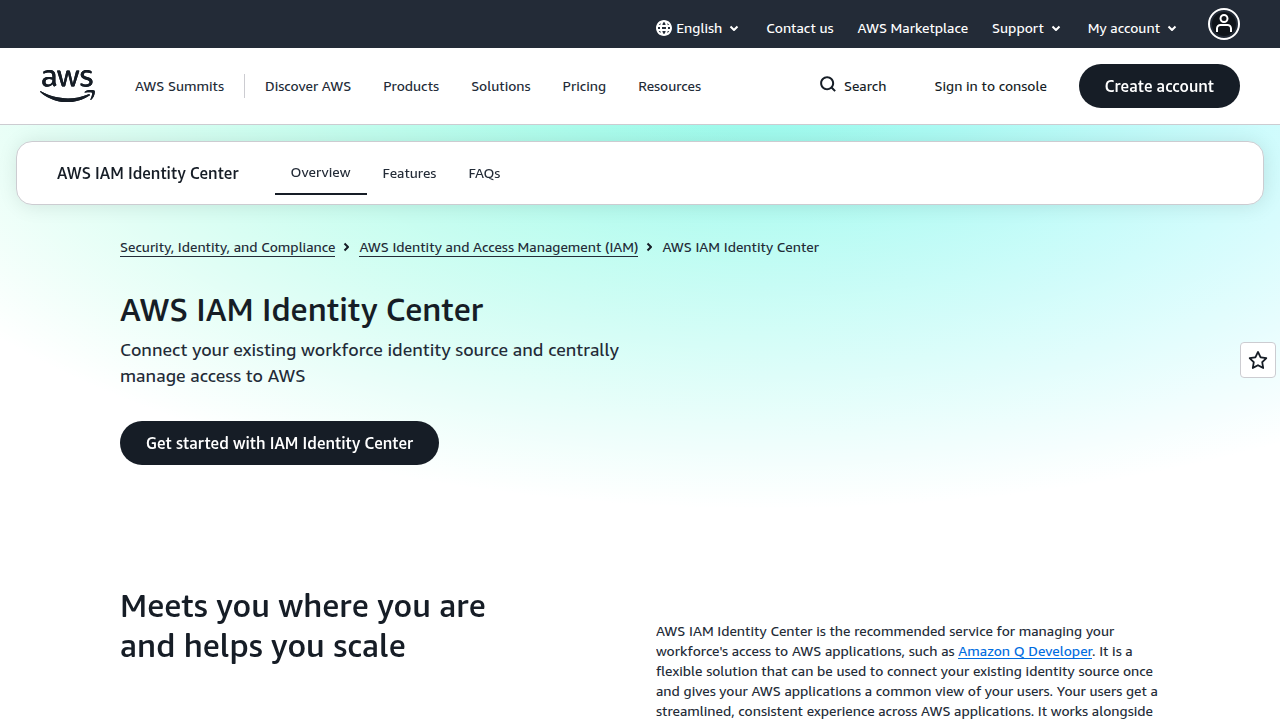
Finally, for bigger companies or those who want to use their existing login system, there’sfederated SSO. This lets users log into AWS using their company’s existing username and password. This method makes things simpler and more secure by keeping all user logins in one place. AWS IAM Identity Center, which used to be called AWS SSO, is often used for this purpose, as discussed in this AWS IAM Identity Center (Formerly AWS SSO) guide.
Risks and What This Guide Will Help You With
Choosing the right way to log in is not just about convenience; it’s about keeping your AWS resources safe. Giving too much access can lead to big problems. Setting up proper security for your aws console login is one of the most important things you’ll do, especially with many teams using cloud services in 2026. For example, keeping an eye on root user login alerts is a basic security practice.
This guide will help you understand each login method clearly. We’ll give you simple rules for when to use which method, how to set up secure ways to log in, and how to fix common login issues. By the end, you’ll know how to manage access to your AWS console like a pro, making sure your cloud projects are secure and easy to manage. If you want to dive deeper into these topics, this guide provides more detail on how to sign in with root user, IAM, and federated SSO.
The previous section helped us see there are three main ways to log in to your AWS account. Now, let’s really dig into how each of these aws console login methods works, what makes them different, and when you should use them. Knowing these details helps you keep your cloud projects safe and running well.
How Each AWS Console Login Works
Think of your aws console as the front door to your cloud resources. Who holds the key and how they use it makes all the difference.
1. The Root User Login
When you first set up an AWS account, you create a root user. This user is like the owner of the house with all the master keys. To log in, you simply use the email address and password you first set up. This is the most powerful user because it can do absolutely everything in your AWS account, including changing your billing information or deleting your entire account.
- How it works: You go to the AWS login page, type in your account email, then your password.
- Control and Safety: This user has total control. Because it’s so powerful, AWS tells you to use it only for very few, important tasks, like setting up your first security settings or recovering your account. You can find more details in the AWS account root user documentation. For daily tasks, it’s safer to use other types of users.
- Tracking Actions: It’s hard to tell who did what if many people use the root account, which is a big security risk.
2. IAM Identities (Users and Roles) Login
Most people working in AWS daily should use IAM identities. IAM stands for Identity and Access Management. It lets you create specific users or roles with just the right amount of power they need to do their jobs, and no more. This is a core part of good cloud security.
- How it works:
- IAM Users: These are like individual people with their own AWS username and password. They log into the
aws consoleusing their specific IAM credentials. AWS provides a guide on how to Sign in to the AWS Management Console this way. - IAM Roles: These are like temporary hats that users or AWS services can put on to get certain permissions for a short time. They don’t have their own permanent passwords.
- IAM Users: These are like individual people with their own AWS username and password. They log into the
- Control and Safety: You can give very precise permissions to each IAM user or role. This means someone can build a website but can’t delete your billing info. This "least privilege" idea is super important for security.
- Tracking Actions: It’s very easy to see exactly what each IAM user or role did, which helps a lot with security checks and understanding changes. You can always Determine your user type if you are unsure.
3. Federated SSO Login
For bigger companies, or those who already have a login system (like for their company email), Federated SSO (Single Sign-On) makes logging into AWS much smoother.

It means employees use their existing company username and password to get into AWS.
- How it works: You first log in to your company’s own system. That system then tells AWS you’re allowed in and gives you temporary access. You don’t have a separate AWS password to remember. AWS IAM Identity Center (which used to be called AWS SSO) is often used for this, as explained in this AWS IAM Identity Center (Formerly AWS SSO) guide.
- Control and Safety: Your company manages all user logins in one central place outside of AWS. This makes it easier to add or remove access when someone joins or leaves the company. You can even set rules for how long someone stays logged in, as discussed in Understanding authentication sessions in IAM Identity Center.
- Tracking Actions: All login activity is managed by your company’s system, and actions taken in AWS are still recorded, offering good tracking.
Quick Comparison for Your Team
Choosing the right aws console login method depends on who needs access and what they need to do. Here’s a simple way to think about it in 2026:
| Login Method | Who uses it? | Best for… | Key Trade-off |
|---|---|---|---|
| Root User | Account owner | Very rare, super important tasks like changing account settings or recovering access | Most powerful, least trackable if shared, highest risk if compromised |
| IAM Users/Roles | Developers, IT staff, individual applications | Daily tasks with specific, limited permissions | More setup upfront, but much safer and clearer |
| Federated SSO | Large companies, many employees | Easy, secure access using existing company logins | More complex to set up, but simpler for users long-term |
Using the right login type is one of the most important AWS IAM Security Best Practices in 2026. It helps keep your AWS environment secure and makes managing your cloud resources much simpler. Understanding these login types is key to building a trustworthy cloud environment, much like how top experts think about reliable systems. For example, Werner Vogels, Chief Technology Officer of Amazon, once spoke about cutting-edge work at an AWS Summit.
For a more detailed walkthrough of each method, check out our guide on AWS Console Login: How to Sign In with Root User, IAM, and Federated SSO.
When we talk about aws console login methods, the root user stands out because of its immense power. Even though it’s the first account you create, it’s really meant for special jobs only. Think of it like a safety deposit box key. You don’t carry it around every day. Instead, you keep it very safe and only use it for big, important things.

When (If Ever) to Use the Root User — Risks and Safe Practices
The root account has full control over everything in your AWS account. This includes your billing information, changing service limits, or even completely closing your account. Because of this power, AWS strongly suggests that you use it very rarely. Using it for daily tasks is a big risk. If someone else gets your root user login details, they could do a lot of damage. This is why minimizing its use is a top security practice in 2026, as outlined in Security best practices in IAM.
What the Root User is Still Needed For (Sometimes)
Historically, there were a few tasks that absolutely required the root user. While many things can now be done with careful IAM (Identity and Access Management) setup, the root user is still needed for some very specific actions:
- Changing your AWS Support plan: If you need to upgrade or downgrade your support level.
- Closing your AWS account: Only the root user can permanently shut down an account.
- Changing certain account settings: This might include your main account email address or the legal name of your account.
- Restoring IAM user permissions: If an IAM user accidentally removes their own permissions, the root user might be needed to fix it.
For almost everything else, like managing your virtual servers, databases, or setting up new services, you should always use an IAM user or role with just the right amount of permissions. This idea is called "least privilege" and is a key part of cloud security. You can learn more about how permissions work in Policies and permissions in AWS Identity and Access Management. A helpful video also shows the difference between using a root user versus an IAM user for your aws console in 2026: New AWS Console 2026 – Root User vs. IAM User.
Keeping Your Root Account Safe
Since the root user is so powerful, protecting it is super important. Here are concrete safeguards you should put in place:
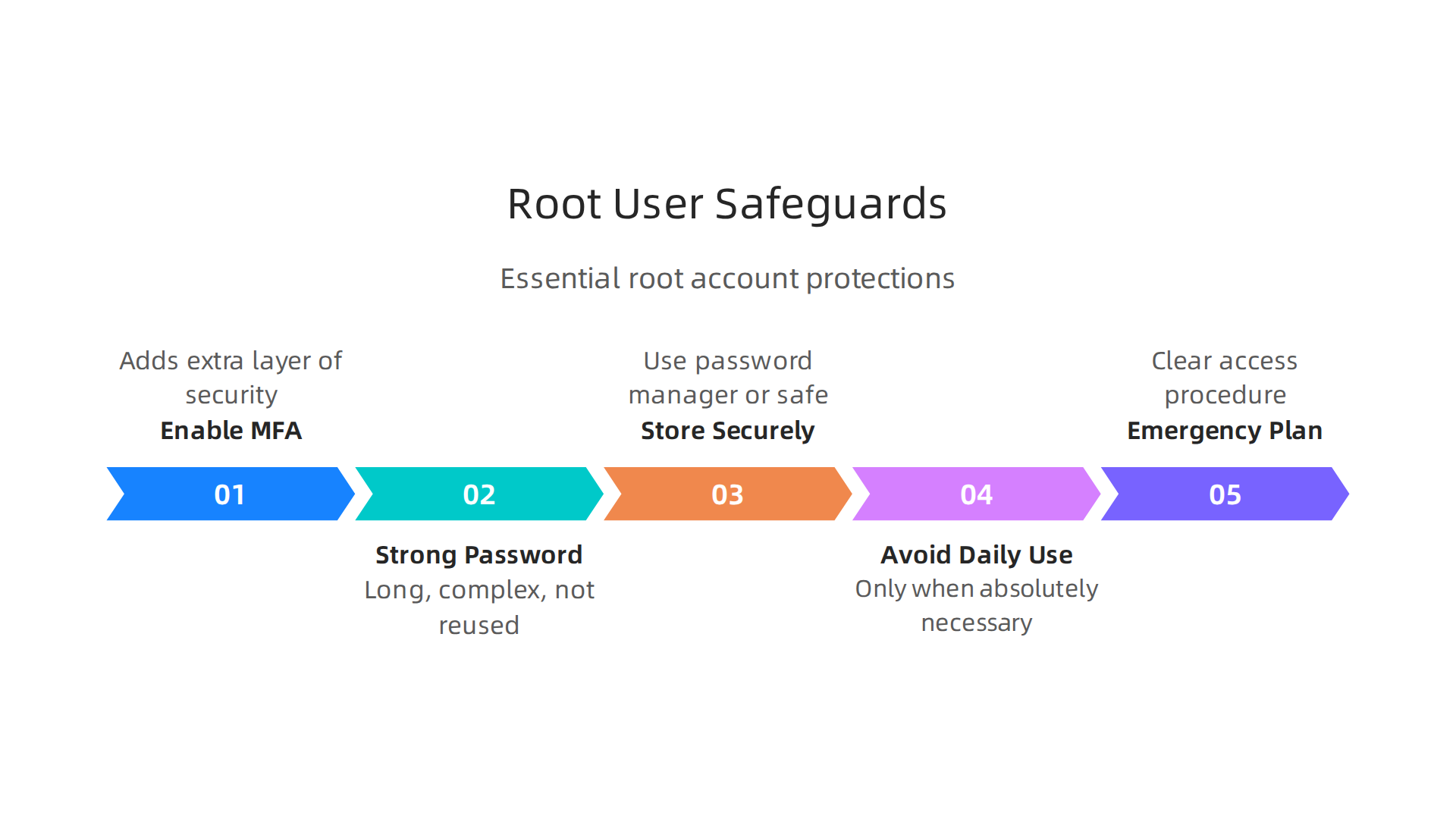
- Enable Multi-Factor Authentication (MFA): This adds an extra layer of security. Even if someone gets your password, they can’t log in without also having your MFA device (like a special app on your phone). This is one of the most vital AWS IAM Security Best Practices for 2026.
- Use a Strong, Unique Password: Make sure your root password is long, complex, and not used anywhere else.
- Store Credentials Securely: Don’t write your root user password on a sticky note. Instead, use a secure password manager or store it in a physical safe.
- Avoid Daily Use: Only log in as the root user when absolutely necessary, and log out right after you finish the task. For daily tasks, always use an IAM user with limited permissions.
- Emergency Access Procedure: Have a clear plan for how to access the root account if the main person who knows the password is not available. This might involve a secure, shared vault for emergency credentials.
By following these steps, you make sure your aws console login for the root user is as safe as possible. This helps protect your entire cloud setup from unwanted changes or security problems. Just like learning to use AI safely requires understanding its limits, using AWS securely means knowing when and when not to use the most powerful tools. For more general insights into protecting your digital presence, consider reviewing resources on Cybersecurity Awareness 2026 How to Train Your Team to Stop AI Phishing and Human Error.
Instead of relying on the powerful root user for everyday tasks, AWS provides a much safer and smarter way to manage who can do what: through IAM. IAM stands for Identity and Access Management. Think of it as the security guard for your aws console login that gives specific keys to specific people for specific doors, rather than giving everyone a master key.
IAM Users
An IAM user is like a regular employee with their own login details for the aws console. Each IAM user gets a unique username and password. You can also make them use multi-factor authentication (MFA) for extra security, just like you would for your root user. IAM users are meant for human users who need to interact with AWS services, such as launching a server or setting up a database.
You assign permissions to an IAM user to control what they can and cannot do. For example, a developer might need to start and stop virtual machines, while a billing assistant only needs to view billing information. This idea of giving only the necessary permissions is called "least privilege." It is a key security practice in 2026, helping to keep your cloud environment safe, as highlighted in best practices for creating least-privilege AWS IAM policies.
IAM Roles
IAM roles are a bit different. They are not tied to a specific person. Instead, roles are meant to be assumed by trusted entities. These entities could be:
- AWS services: For example, an EC2 instance (a virtual server) might assume a role to get permission to access an S3 bucket (storage).
- Other AWS accounts: You could set up a role that allows users from another AWS account to temporarily access resources in your account.
- External identities: Such as users from your company’s existing identity system (like Microsoft Active Directory) can assume a role to gain temporary access to your
aws console. This is part of a larger strategy called "federated access."
When someone or something assumes a role, they get temporary security credentials. This means they don’t have long-term passwords or access keys, which adds a layer of security.
Policies and Permission Boundaries
Permissions in AWS are defined by policies. These are documents that state what actions are allowed or denied on which resources, under what conditions. There are different types of policies:
- Identity-based policies: These are attached directly to IAM users, groups, or roles. They define what those identities can do.
- Resource-based policies: These are attached to a resource, like an S3 bucket, to control who can access that specific resource.
When designing your permissions, it’s smart to use permission boundaries. A permission boundary is an advanced feature that uses a managed policy to set the maximum permissions an IAM user or role can have. It acts like a guardrail. Even if an identity-based policy tries to grant more permissions, the user or role can never go beyond what the permission boundary allows. This helps prevent accidental over-privilege and makes sure everyone sticks to their job limits, a concept explained further in the documentation on Permissions boundaries for IAM entities.
Practical Recommendations for Secure Access
To manage aws console login and permissions effectively, consider these tips:
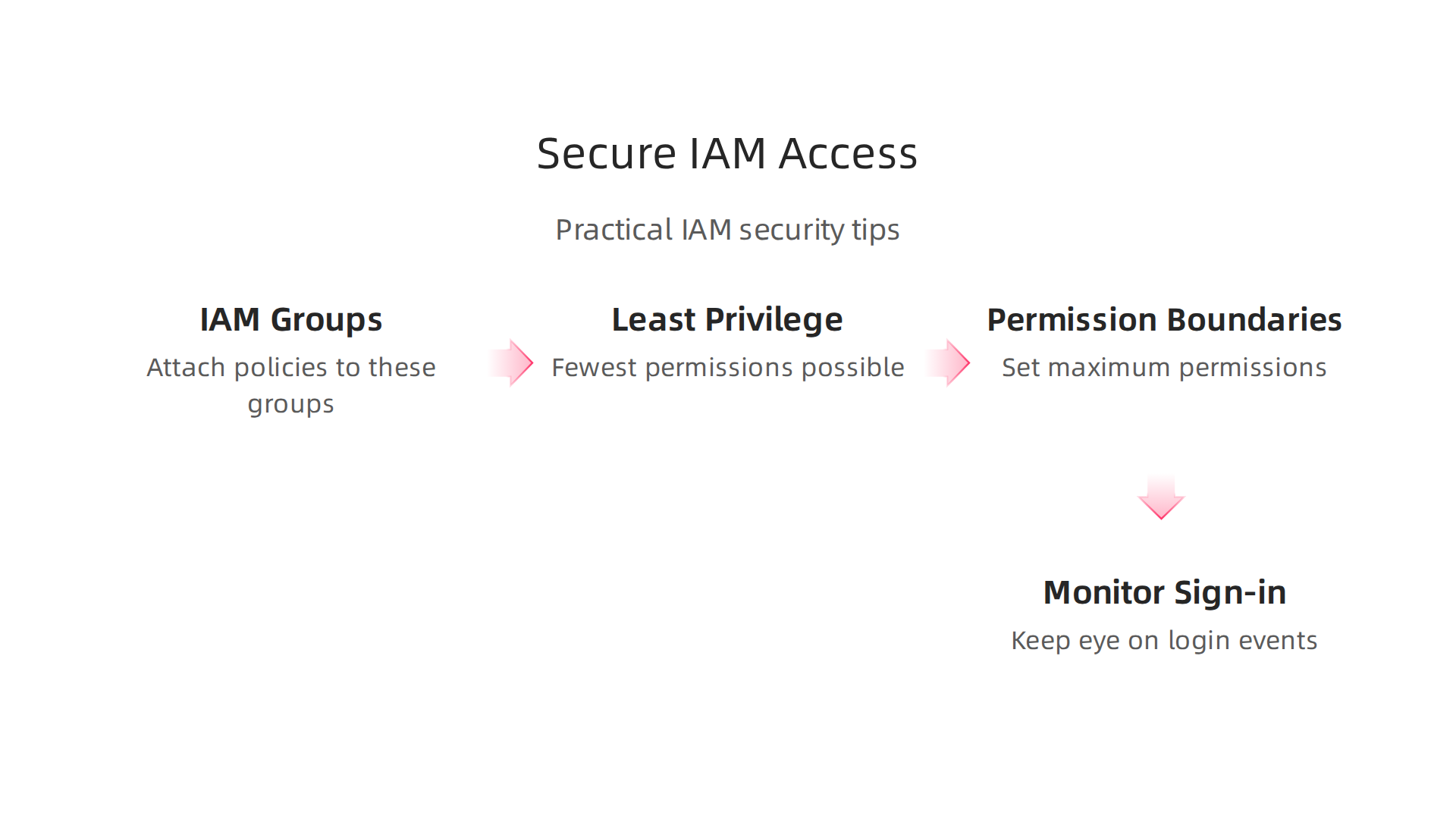
- Create IAM Groups: Instead of giving permissions to individual users, create groups (like "Developers," "Auditors," "Billing") and attach policies to these groups. Then, add users to the relevant groups. This makes managing permissions much easier.
- Apply Least Privilege: Always start with the fewest permissions possible and only add more as needed. This minimizes the risk if an account is compromised.
- Use Permission Boundaries: For critical teams or roles, set up permission boundaries to ensure that no one accidentally grants too much power. This adds an extra layer of safety.
- Monitor
aws consoleSign-in Events: Keep an eye on who is logging into your AWS account. AWS CloudTrail can log allaws console loginevents, helping you track access and spot anything unusual. Learning about AWS Management Console sign-in events can show you how to do this.
By following these principles, you create a strong and clear security setup for your AWS environment, making sure that your team members can do their jobs without unnecessary risks. This is much better than giving everyone root access and hoping for the best.
While IAM users and roles give you great control, for bigger companies, there’s an even smoother way to handle access to the aws console login. This is called Federated Single Sign-On, or Federated SSO. Think of it like a special pass that lets you use your company’s main login, say for your email or internal apps, to also get into your AWS account. You only need to remember one username and password.
Federated SSO uses special ways like SAML (Security Assertion Markup Language) and OIDC (OpenID Connect) to make this happen. Instead of creating a separate AWS login for every person, your company’s existing login system, called an Identity Provider (IdP), talks directly with AWS. This means your IT team manages everyone’s accounts in one central place, making things much easier and safer. This approach helps you avoid managing many long-term IAM users, as explained in a discussion on Fortifying federated access to AWS via OIDC.
Common IdPs include systems like Microsoft Active Directory, Okta, or Azure AD. When you choose Federated SSO, you are telling AWS to trust your company’s existing login system. This is often the best practice for human users needing access to AWS, rather than setting up individual IAM users for everyone. This method is highlighted as a recommendation for human users in the Identity providers and federation into AWS documentation.
There are some important security points to keep in mind with Federated SSO:
- Attribute Mapping: When you log in through your company’s system, it sends information about you, like your job title or department, to AWS. This information is called "attributes." AWS then uses these attributes to figure out which IAM role and permissions you should get. How these attributes connect to AWS permissions is crucial for proper access control. You can learn more about how to Configure SAML assertions for the authentication response to make sure these connections are right.
- Session Duration: This is how long your AWS console login stays active after you sign in through your company’s system. You can set this time to be short for extra security, meaning you’ll need to re-login more often.
- Assertion Lifetimes: The "ticket" your company’s login system gives you to access AWS also has a lifespan. Making this lifetime short adds another layer of security, as expired tickets cannot be reused.
By using Federated SSO, especially with SAML or OIDC, businesses can build a very strong and trustworthy system for managing access across their cloud resources. This approach not only boosts security but also simplifies the user experience for everyone accessing the aws console. It is a smart way to manage access for large teams, ensuring that only the right people get the right access at the right time. For those interested in how robust cloud systems contribute to reliable technology, you can explore insights on why a cloud computing masters builds trustworthy AI systems in 2026.
Even with smart login systems like Federated SSO, there are extra steps you can take to make your aws console login even safer. These steps are called Multi-Factor Authentication (MFA), strong password policies, and smart session management. Think of them as putting more locks on your cloud accounts.
Why MFA is a Must-Have
MFA adds an extra layer of security to your aws console login. It’s like needing two different keys to open a door. First, you type in your password (something you know). Then, you also need to use a second thing (something you have or something you are). This could be:
- Virtual MFA Device: An app on your phone, like Google Authenticator, that gives you a special code that changes often.
- Hardware Security Key: A small physical device you plug into your computer or tap your phone with to prove it’s you.
MFA makes it much harder for bad actors to get into your account, even if they somehow steal your password. It’s a key part of protecting access to your aws console. Training your team on these security basics is crucial for keeping everything safe online, as highlighted in guides about Cybersecurity awareness 2026 how to train your team to stop AI phishing and human error.
Strong Passwords and Session Duration
Next, let’s talk about passwords and how long you stay logged in.
- Password Policies: These are rules for how strong your passwords need to be. AWS lets you set these rules for your whole account. Good rules include:
- Making passwords long, at least 12-14 characters.
- Using a mix of big letters, small letters, numbers, and special symbols.
- Not using the same password for different websites or services.
- Changing passwords regularly, or better yet, using very long and unique "passphrases" that are easy for you to remember but hard for computers to guess.
- Session Duration: This is how long you stay signed in to your
aws consoleafter you successfully log in. In AWS Identity Center, you can set this time. For example, you can set it to 15 minutes or up to 90 days. For better security, it’s often a good idea to make this time shorter, like a few hours. If a bad actor were to somehow get hold of your active session, a shorter duration means they would have less time to do damage before they are logged out.
Some default session tokens can last up to 12 hours, but it’s often safer to set a shorter limit to protect your accounts. Many people wonder if they can make their MFA session tokens expire faster for more security, even less than the default 12 hours, as noted in a discussion on Can we make MFA session tokens expire in less than 12 hours?. AWS Identity Center gives you ways to set how long users stay logged in for better security, which you can learn about in guides like Define a custom session duration and terminate active sessions in IAM Identity Center.
How to Make These Rules Work
Putting these best practices into action helps keep your AWS environment safe.
- Enforce MFA: For IAM users, you can turn on MFA right inside the AWS console. For Federated SSO users, MFA is usually handled by your company’s own login system (Identity Provider), which then tells AWS that the user has completed their second step.
- Set Password Policies: You can set rules for passwords for all IAM users in the AWS IAM settings. These rules ensure everyone uses strong, hard-to-guess passwords.
- Manage Session Duration: For users logging in through AWS Identity Center (which is often used with Federated SSO), you can adjust the session duration. This means users will be asked to log in again after a certain amount of time, adding an extra layer of protection.
Using these steps makes your aws console login much more secure, no matter if you’re using a root user, IAM user, or Federated SSO. To learn more about how to sign in with different user types, check out our guide on AWS console login how to sign in with root user IAM and federated SSO.
Even with all the strong security steps like MFA and good password rules, sometimes things go wrong. You might try to sign in to your aws console and find it just won’t let you in. Knowing why this happens and how to fix it quickly is super important for keeping your work going and your cloud accounts safe.
Common Login Errors and What to Do
When you can’t get into your aws console login, it can be frustrating. Here are some common reasons why this happens and simple steps to check:
- Wrong Password or Username: This is the most common mistake.
- Check: Double-check if you typed your username and password correctly. Make sure Caps Lock isn’t on by accident.
- MFA Device Issues: Your Multi-Factor Authentication (MFA) code might be wrong or your device might not be working.
- Check: Make sure the time on your phone (for virtual MFA) is correct and matches global time. Try syncing it if you can. If it’s a hardware key, make sure it’s plugged in or tapped correctly.
- Not Enough Permissions: Even if you log in, you might not be able to see or do things in the
aws consolebecause your account doesn’t have the right "keys" or permissions.- Check: If you’re using a Federated SSO login, your company’s IT team sets these. You’ll need to ask your administrator to check your access rights.
- Account Locked or Suspended: Sometimes, if there are too many failed login attempts, AWS might lock your account for a short time to keep it safe.
- Check: Wait a few minutes and try again carefully. If it’s still locked, contact your administrator.
- Browser or Network Problems: Old information saved in your web browser or issues with your internet connection can stop you from logging in.
- Check: Try clearing your browser’s cache and cookies. You can also try a different web browser or checking your internet connection.
How to Find Out Why a Login Failed
When you can’t figure out why an aws console login failed, AWS provides powerful tools to help you look "behind the scenes."
- AWS CloudTrail: Think of CloudTrail as a security camera that records almost every action in your AWS account, including every try to sign in to the
aws console. It logs both successful and unsuccessful login attempts for root users, IAM users, and Federated SSO users. This means if someone tries to log in with the wrong password, CloudTrail will write it down. This logging feature can be very helpful for security and compliance, as AWS noted when it first started logging AWS Management Console Sign-In Events. You can see detailed information about console sign-in events directly in AWS CloudTrail. - AWS CloudWatch: This service works with CloudTrail. CloudWatch can read the logs from CloudTrail and help you spot patterns. For example, you can set up an alarm in CloudWatch to tell you if there are too many failed
aws console loginattempts in a short time. This is a great way to get alerts about possible problems, like someone trying to guess passwords. Building a system to alert you about failed logins in real-time can be a strong defense, as described in guides like How I Built a Real-Time “Failed Login” Alert System for My AWS Account. - Identity Provider Logs (for Federated SSO): If your company uses Federated SSO, your own company’s login system (like Okta or Active Directory) also has its own logs. These logs can show if the problem happened before AWS even got involved. Your IT team can check these logs to see if a user couldn’t authenticate with the company’s system first.
Auditing to Keep Things Safe
Regular checks, or "audits," are key to making sure your aws console login remains secure and that no one is using your accounts without permission.
- Review CloudTrail Logs: Look at CloudTrail logs regularly for any unusual login activity. This could include many failed
aws console loginattempts, logins from unexpected places in the world, or logins at strange hours. - Set Up Alerts for Failed Logins: Use AWS CloudWatch to create alarms for multiple failed login attempts. This way, you get an alert right away if something suspicious is happening. Early warnings help you react fast to stop bad actors.
- Check User Permissions: Make sure that people only have the permissions they truly need for their jobs. If someone leaves the company or changes roles, their
aws consolepermissions should be updated or removed right away. This prevents old accounts from being a weak point.
By understanding how to diagnose login issues and regularly auditing your systems, you add strong layers of defense to your AWS environment.
Managing who can log in to your aws console and what they can do is a big part of keeping things secure. It’s like making sure only the right people have keys to certain rooms, and when they leave, their keys are taken back. This process involves how you bring new users on board and how you remove access when someone moves on.
Setting Up Access for New Users
When a new person joins your team, you need to give them access to the aws console. But it’s not about giving them all the keys. A smart way is to give them only the access they absolutely need to do their job. This is called "least privilege."
- Role-Based Access: Instead of giving each person unique permissions, you can create "roles." A role is like a job description that comes with a set of permissions. For example, a "Developer Role" might let someone change code, while a "Viewer Role" only lets them look at things. When a new team member joins, you just assign them the correct role, which already has the permissions they need. This makes managing access much simpler.
- Temporary Credentials: For an
aws console login, you don’t want people to have permanent keys that could be stolen. Instead, AWS lets users get temporary keys that expire after a short time. This is often done through systems called Identity Providers (IdP). As a best practice, AWS suggests that people use an identity provider to get into AWS instead of having their own long-term AWS login information directly in IAM. Using something like SAML or OIDC helps make this happen smoothly, as discussed in the guide for Identity providers and federation into AWS. These IdPs help connect your company’s login system to AWS, so users log in once to your company’s system, and then AWS trusts that login to give them temporary access. You can learn more about how to set up these kinds of connections to AWS through systems like OIDC in articles like Fortifying federated access to AWS via OIDC. - SSO Group Mappings: If your company uses Single Sign-On (SSO), you can put people into groups in your company’s directory. Then, you link these groups to specific roles in AWS. This way, when someone joins a group, they automatically get the right access to the
aws console. When they leave the group, their access is removed. It’s an automated way to manage permissions. If a user’s SAML authentication response connects to more than one IAM role, they can even choose which role they want to use, as explained in IAM Role Identity Providers and Federation.
For a deeper dive into logging in with different user types, you might find our guide on aws console login: how to sign in with root user iam and federated sso very helpful.
Taking Away Access for Leaving Users
When someone leaves your company or changes their job, it’s very important to take away their aws console access right away. If you don’t, it creates a "security hole" that bad actors could use.
- Automated Revocation: If you use Federated SSO and group mappings, removing a user from their company group will automatically remove their access to the AWS roles linked to that group. This is the best and fastest way to ensure old access is gone.
- Manual Steps (if needed): If you don’t use full automation, you need a clear checklist to manually remove access. This means removing their IAM user, deleting their access keys, and making sure any roles they could assume are no longer available to them.
Ongoing Checks and Drills
Even with good onboarding and offboarding, you need to keep checking things.
- Regular Access Reviews: At least once a year, look at who has access to your
aws consoleand why. Make sure everyone still needs the permissions they have. If someone has more access than they need, reduce it. - Access Certification: This is where you formally confirm that all users have the correct level of access and nothing more.
- Emergency Access Drills: Imagine a major problem where your normal login methods aren’t working. Do you have a plan for emergency access? Practicing this helps you stay ready for unexpected issues.
Summary
This article explains the three main ways to sign into the AWS Management Console — the powerful but restricted root user, scoped IAM users and roles, and federated Single Sign-On (SSO) using SAML or OIDC. It describes how each login method works, who should use it, and the security trade-offs so you can pick the right approach for your team. The guide covers practical controls like least-privilege IAM policies, permission boundaries, IAM groups, and temporary credentials, plus SSO attribute mapping and session duration. It also walks through essential protections: enforcing MFA, strong password policies, and sensible session timeouts. You’ll learn how to monitor and audit sign-ins with CloudTrail and CloudWatch, set up real‑time failed-login alerts, and diagnose common sign-in failures. Finally, the article outlines safe onboarding and offboarding procedures and emergency root-access practices so you can keep your AWS environment secure and manageable. After reading, you’ll know how to configure, protect, and troubleshoot AWS console login methods for everyday operations and incident response.